Please disable your ad blocker.
The only ads on this site are discreet (sidebar on desktop, below the content on mobile).They do not interfere with reading and may even offer you benefits (discounts, free months…).
Enable dark mode in Windows 10
Windows dark mode can reduce eye strain and improve screen readability in low-light environments. Follow these simple steps to enable dark mode on Windows 10 and enjoy a more comfortable visual experience.
-
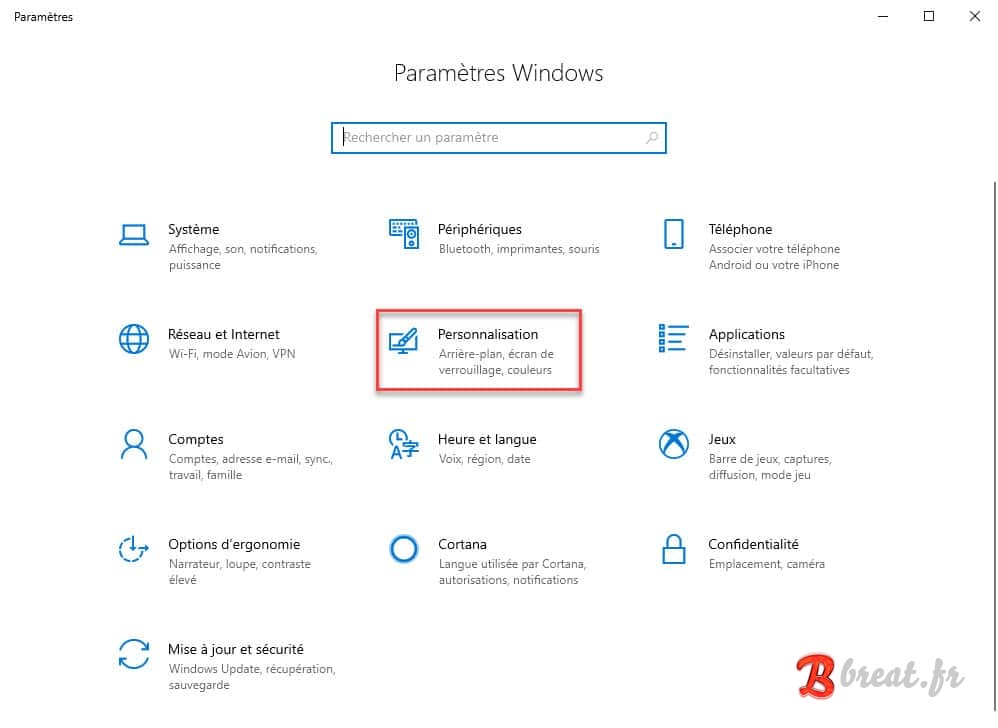
From Windows 10, go to
Settingsand then click onPersonalization -
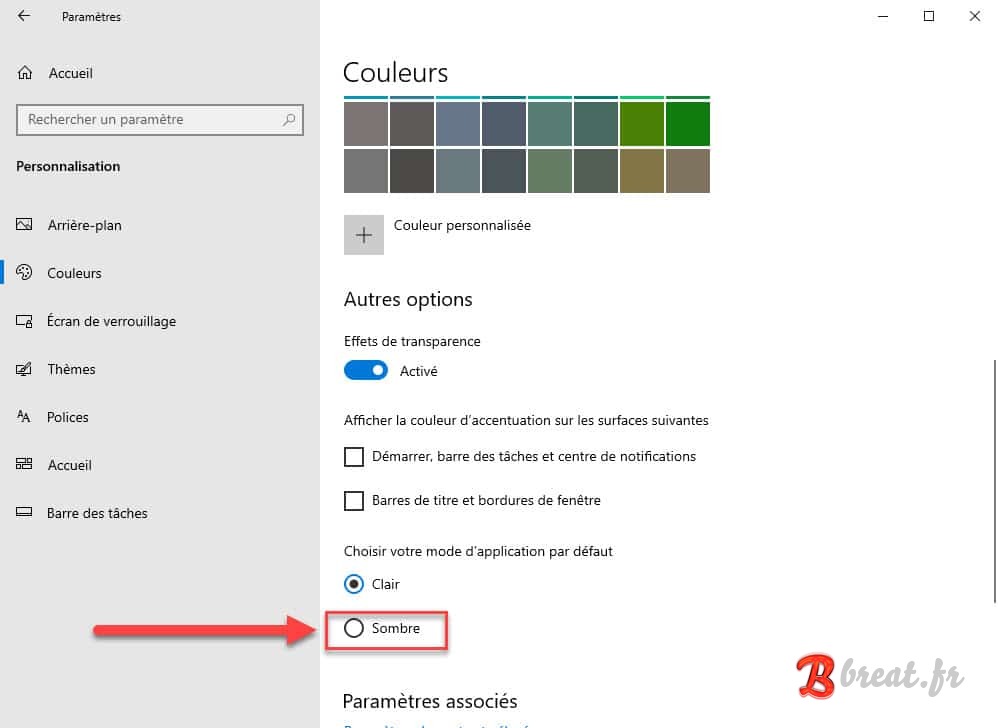
On the left, select the
Colorsmenu, then scroll down until you findChoose your default app mode, and finally selectDark
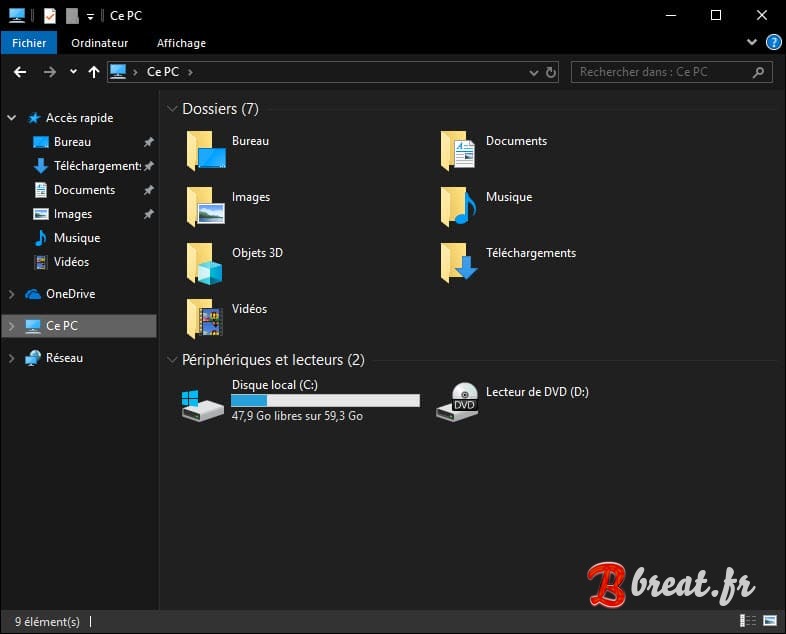
Your computer should automatically switch to dark mode.

If you are using Windows 10 version 1809 or 1903, File Explorer will also switch to the selected mode.
If you change your mind and want to switch your computer back to light mode, follow the same steps and select Light instead of Dark.
Menu names may vary depending on your version of Windows.
Comments