Please disable your ad blocker.
The only ads on this site are discreet (sidebar on desktop, below the content on mobile).They do not interfere with reading and may even offer you benefits (discounts, free months…).
Final Fantasy XIV: install ReShade to improve graphics
Final Fantasy XIV is an excellent MMO, but it is starting to show its age. Improving its graphics can be a real treat for our eyes. The method I will explain below is free and works with 99% of games.
To spare you from complicated steps, I will propose a simple file copy/paste method. I used the small software ReShade, which you can download for free here [ reshade.me ].
What is ReShade? Simply put, it’s a bit like Instagram filters. Imagine a photo of you just after waking up, transformed into a movie star image thanks to filters. ReShade does the same thing for games, by applying filters called shaders — hence the name ReShade, re-applying shaders.
Here are four images to compare before and after (the images on the left are without ReShade):

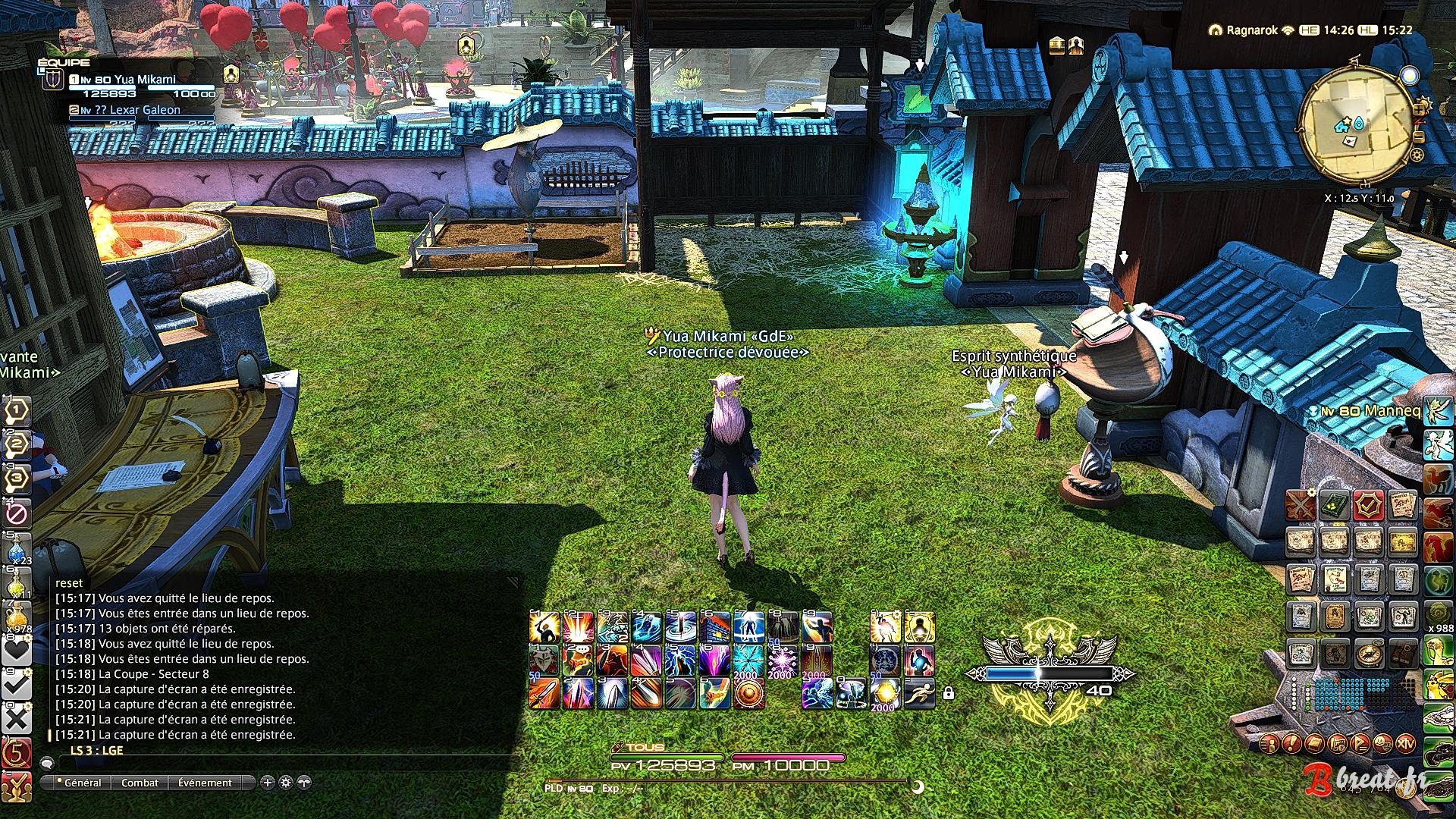
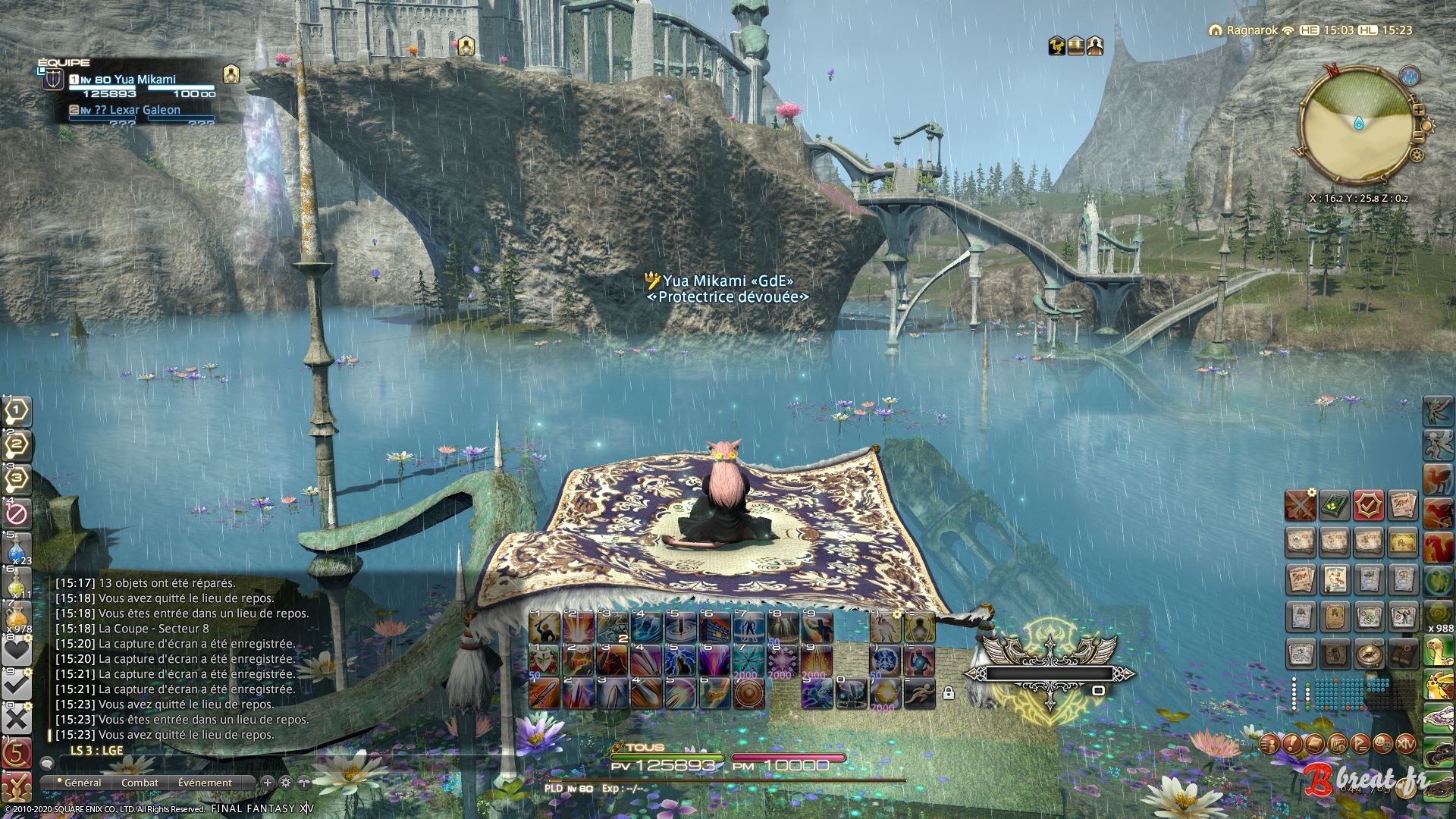
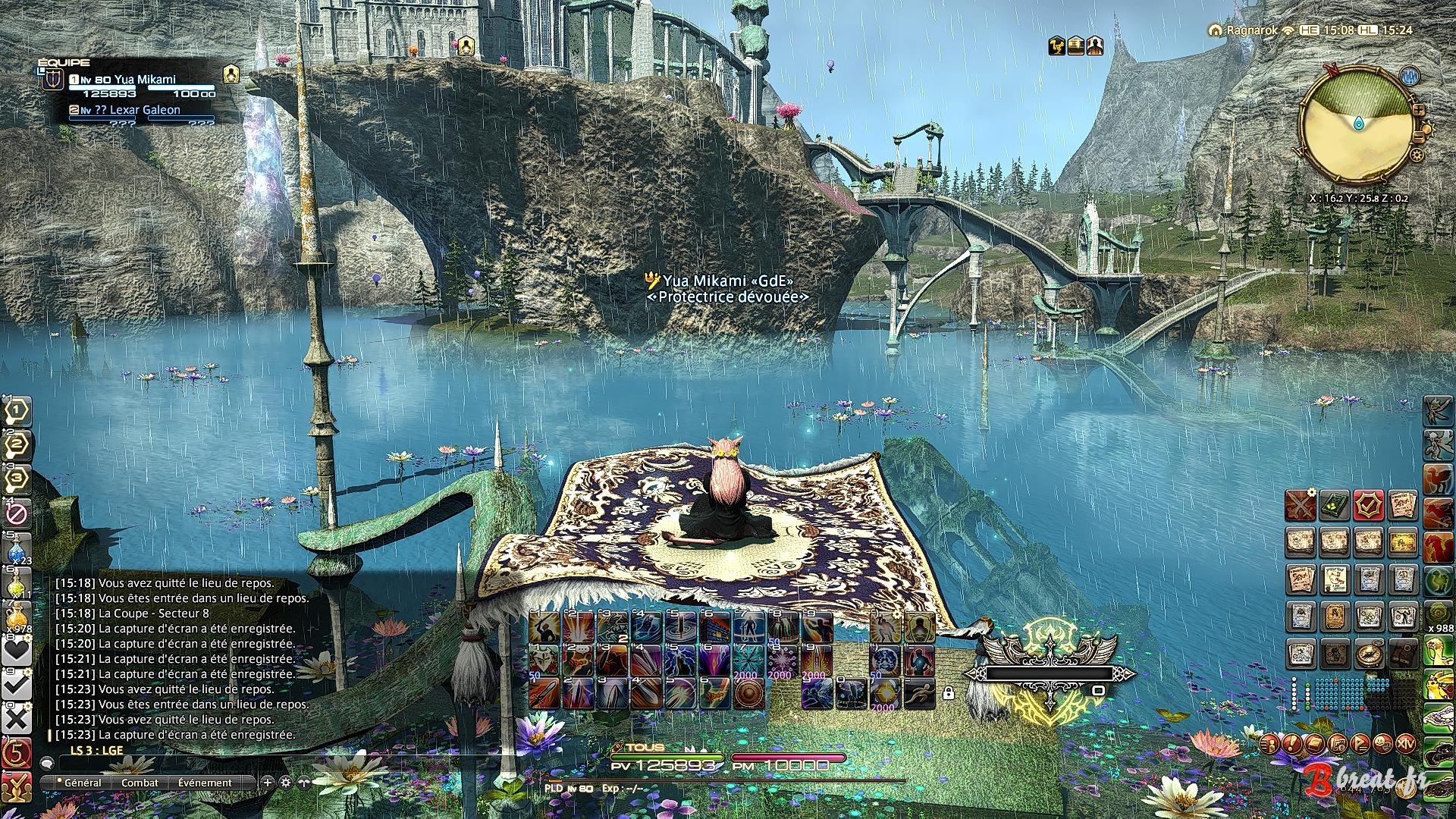
Installing ReShade
If you have an NVIDIA graphics card, you already have everything you need and simply need to press the Ansel filter customization button. More information here [ nvidia.com ].
Now, let’s move on to setting everything up:
Before starting, you will need to download this archive.
Then you have 2 options: the ready-to-use one, or the classic installation
Ready-to-use ReShade installation option
- Locate the game installation folder, more specifically the "game" folder, and go there. For me, for example, it is:
D:\SquareEnix\FINAL FANTASY XIV - A Realm Reborn\game - Extract the contents of the previously downloaded archive into the game folder
- Open the file
ReShade.iniwith Notepad for example, and replace ALL pathsD:\SquareEnix\FINAL FANTASY XIV - A Realm Reborn\gameand ONLY that, even if there is something else after it, with YOUR own path to the game folder, then save the file.- For example, if your path is:
C:\Program Files (x86)\SquareEnix\FINAL FANTASY XIV - A Realm Reborn\game, then paste this instead ofD:\SquareEnix\FINAL FANTASY XIV - A Realm Reborn\game
- For example, if your path is:
- Launch the game and rediscover it 😊
- To modify ReShade settings afterward, press
SHIFT+F2or the key combination you customized once in-game.
Classic ReShade installation option
In addition to the archive mentioned above, you will need to:
- Go to the official ReShade [ reshade.me ] website and download the software
- Install it, making sure to select the file
ffxiv_dx11.exe - Extract the file
Breat.inifrom the previous archive and place it in thegamefolder - Launch the game and select the
gamefolder from the ReShade configuration interface
Comments